After content updates are complete, responses often need validation from subject matter experts or solution leaders. The review process ensures all content meets quality standards before final submission.
Submitting for Review
You can submit items for review in three ways:
From the Outline
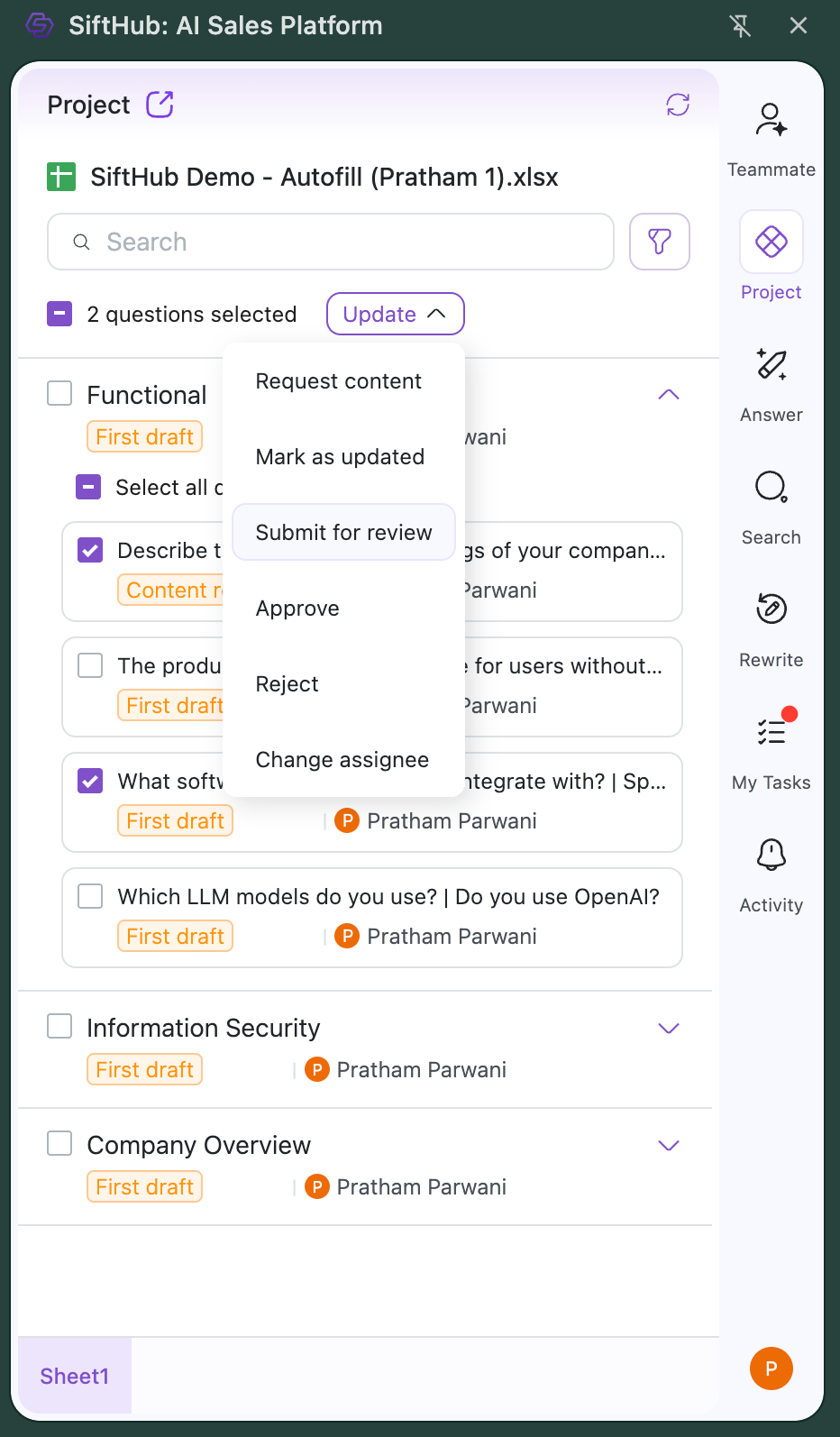
- Select one or multiple questions/sections
- Click the "Update" button
- Choose "Submit for Review" from the options
From Section/Question Details
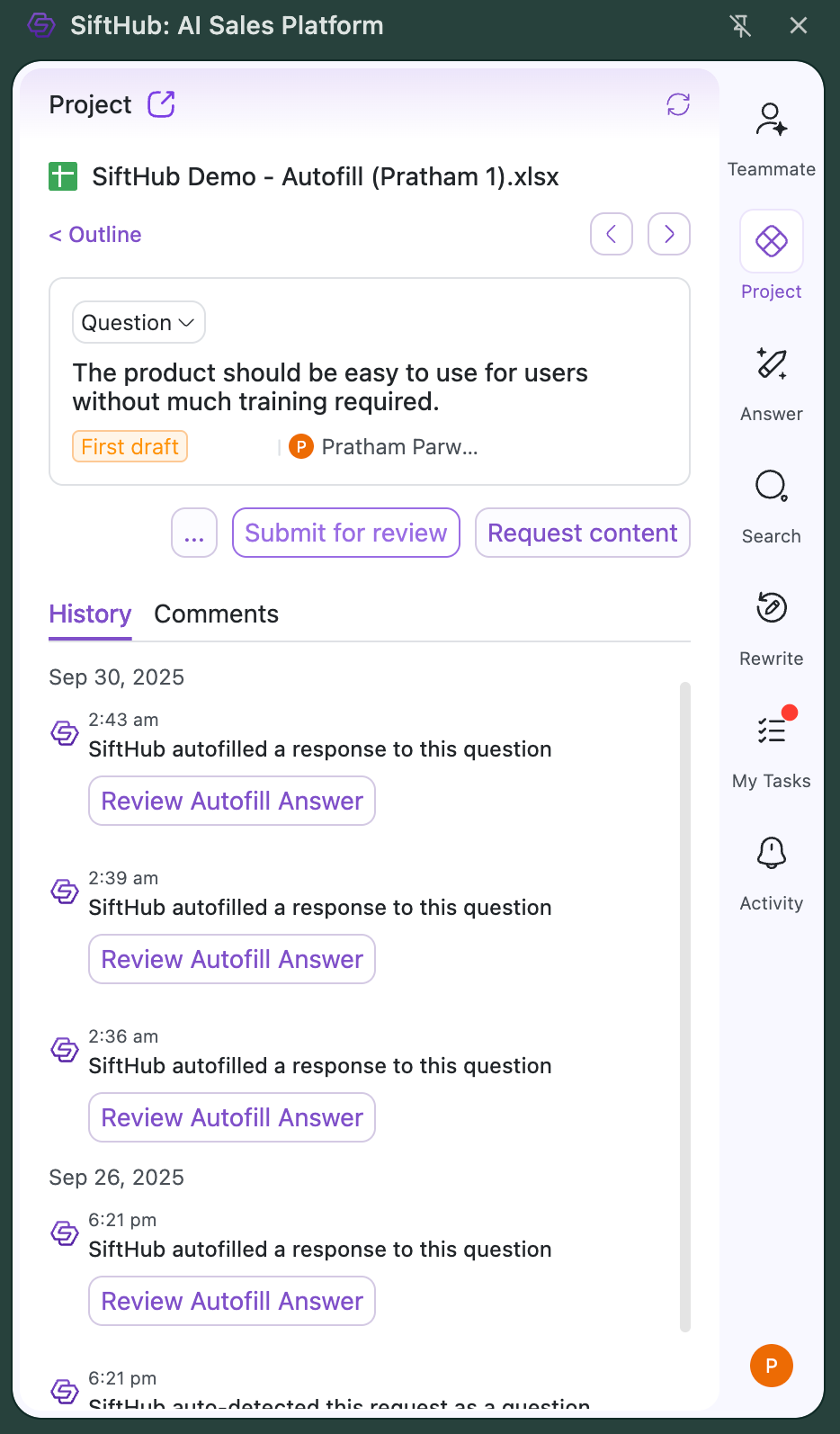
- Open the Section or Question details page
- Click the "Submit for Review" action button
Method 3: From the Web App Grid
Select the completed questions or sections in the grid.
Click the Update button in the top header.
Select Submit for Review from the dropdown menu.
Assigning the Review
When submitting for review, a modal appears where you select the reviewer type:
Option 1: Platform User
Select Platform User to assign to someone within your SiftHub workspace. The dropdown shows two groups:
- Collaborators — users already added to the project
- Other users — other platform users in your workspace who are not project collaborators
Assigning to a Collaborator: The review follows the standard collaboration flow. The reviewer receives a task and completes the review directly in the Primary Document using the Browser Extension, MS Add-in, or Web App table view depending on the project type.
If the collaborator has not been granted access to the Primary Document, the checkbox "Add as collaborator and grant editor access to primary document" will appear and be checked by default.
Assigning to a Non-Collaborator Platform User:
When you select a user from the Other users group, the following checkbox appears:
"Add as collaborator and grant editor access to primary document"
- If checked (default): The user is added as a project collaborator and granted editor access to the Primary Document. The flow then becomes identical to a standard collaborator review — they receive a task and work directly in the document.
- If unchecked: The user is NOT added as a collaborator. They will only have access to the specific questions/sections assigned to them — not the full project. They receive a notification and complete the review through a web form inside the SiftHub Web App (requires login). This is indicated by the note: "User will only have access to the assigned items, not the entire project."
Option 2: Guest User
Select Guest to assign to someone outside your SiftHub workspace — no SiftHub account required.
- Enter the guest's email address manually
- Only same-domain email addresses are permitted
- The guest always receives an open web link — no login required
For full details on the guest user experience, see Guest User Collaboration.
Additional Review Details
For all reviewer types:
- Add a comment for specific review requirements
- Click Submit to initiate the review
The status changes to "Pending Review" and the question/section is assigned to the selected reviewer.
Note: When submitting a Section for review, you can apply the same action to all questions within the section in one click. For non-collaborator and guest reviewers, all questions in the section are always assigned together.
How the Reviewer is Notified
Assigned collaborators are notified in multiple ways:
Email Notification
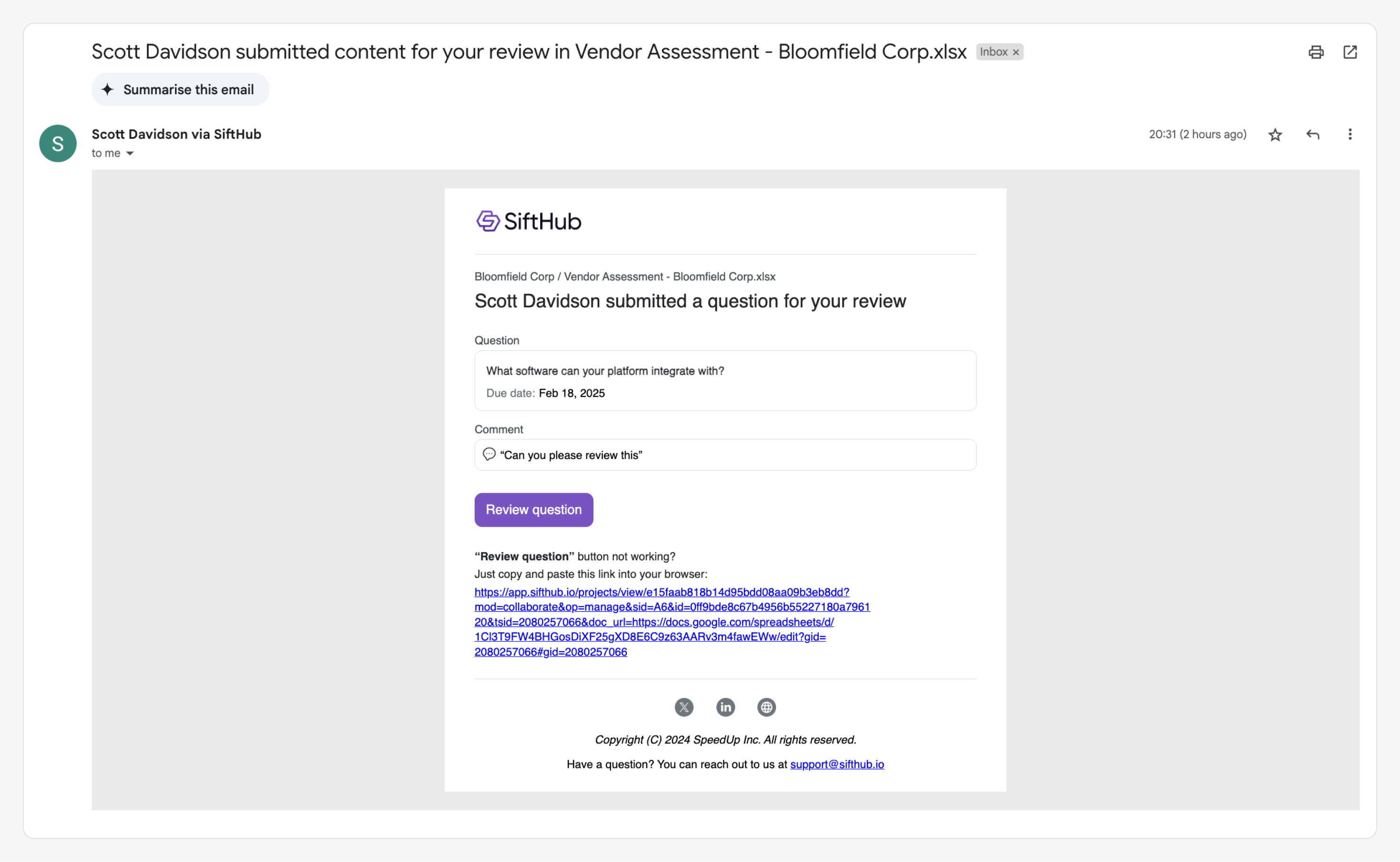
The reviewer receives an email containing:
- Person who submitted the request to them
- Question/Section details
- Project and Document context
- Direct link to review the content
- Any comments from the submitter
Slack Notification
If your workspace has the SiftHub Slack integration enabled, the assignee also receives a Slack message with the same details and a direct link to the question/section.
New Task Created
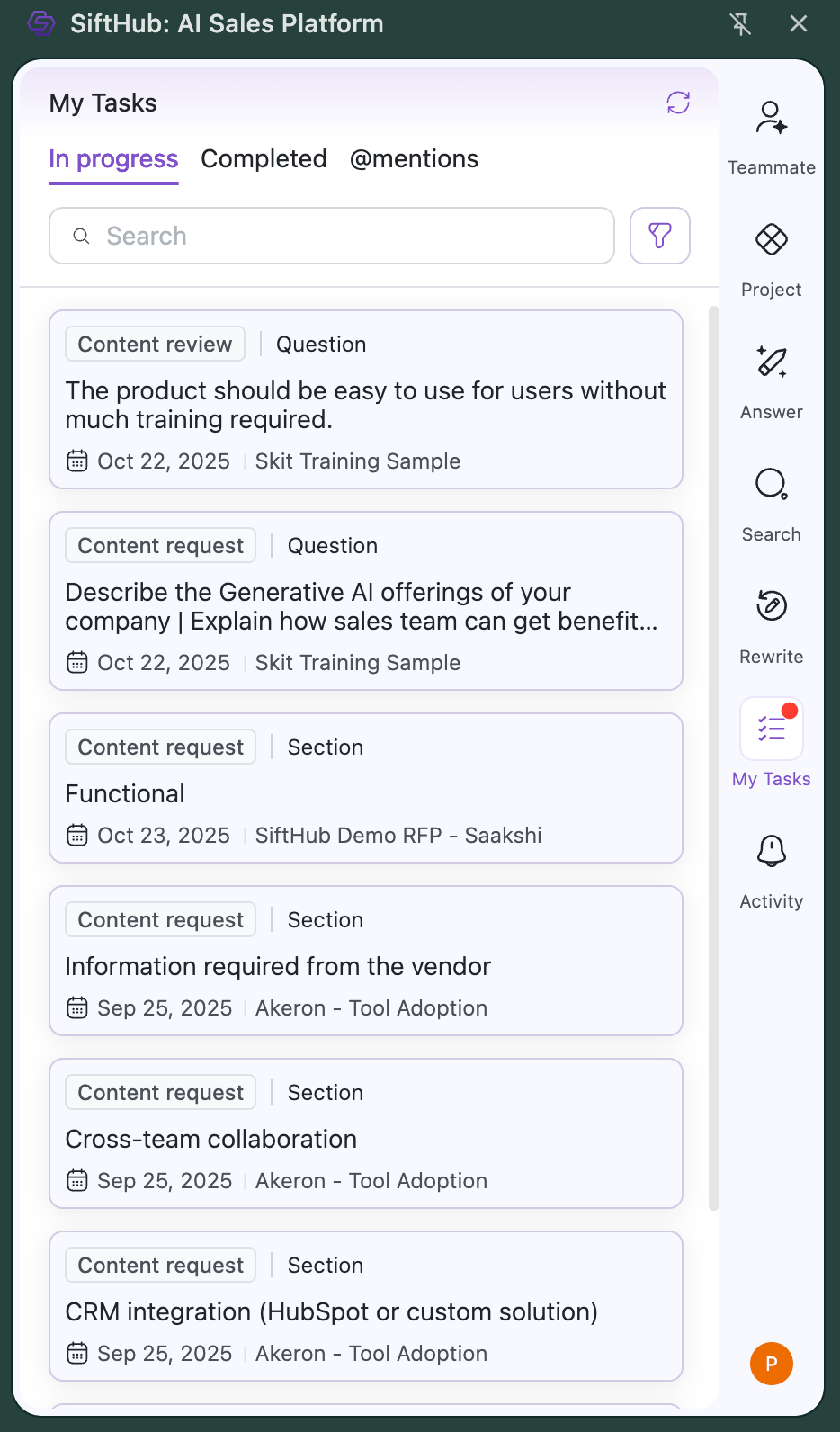
A new task (type: Content review) is automatically created for the assignee, accessible from:
- The My Tasks tab in the Browser Extension (Google Workspace users)
- The My Tasks page in the SiftHub Web App (all users)
Clicking the task opens the relevant question/section directly:
- In the Google Sheet with the Browser Extension (for Google Workspace projects)
- In Excel with the MS Add-in (for Microsoft 365 projects)
- In the Web App table view (for uploaded file projects)
- In the web form (for non-collaborator platform users not added as collaborators)
Taking Review Actions
For collaborators (working in the document or Web App):
Reviewers can take two actions:
Approve
- Confirms content meets requirements
- Reviewers may make changes directly in the document before approving
- Changes status to "Approved"
- Reassigns back to original submitter
- Notifies submitter via email and Slack
- Reviewer's task is marked as completed
Reject
- Returns content for revision
- Changes status to "First Draft"
- Select assignee for updates
- Add feedback comments
- Notifications sent to assigned team member via email and Slack
- Reviewer's task is marked as completed
For non-collaborator platform users (working in the Web App form):
The reviewer approves or rejects through the web form inside the SiftHub Web App. Once actioned, the status updates automatically, and the submitter is notified via email and Slack.
For guest users (working in the open web form):
See Guest User Collaboration for full details on how guests complete their reviews.
Note: Only users with Admin roles can approve or reject content. Other team members can still submit items for review and request content updates.
Comments
Team members can add comments on any question or section independently of the review workflow. Comments can be used to provide feedback, flag issues, or discuss responses without formally rejecting the item.
To add a comment:
- Open the question or section details page
- Navigate to the Comments tab
- Type your comment and use @name to mention collaborators or other platform users
When someone is mentioned:
- They see it under the @mentions tab in My Tasks (Web App and Browser Extension)
- They receive an email notification with the comment context
- They receive a Slack notification if the integration is enabled
- Non-collaborator platform users who are mentioned will only see the specific question/section they were tagged in - not the full project