Sales teams often struggle to find the right information at the right time. Whether it's searching for a specific pricing document, looking up competitor information, or finding details about a past deal, the constant tab-switching and searching across multiple tools can be frustrating and time-consuming.
SiftHub Search makes information access seamless by letting you search across all your connected knowledge sources directly from your browser, without disrupting your workflow.
How to use Search
Search is available in the SiftHub Browser Extension, allowing you to find information without switching between different applications. Here's how to access it:
- Open the SiftHub Browser Extension
- Click on the 'Copilot' tab in the top menu
- Navigate to the 'Search' sub-tab
- Enter your query in the search box and hit enter
What Can You Search For
SiftHub Search lets you find information across all your connected knowledge sources:
- Google Drive documents
- Notion pages
- Slack messages
- Website content
- And other active Connectors in your account
Additionally, search works across content created in SiftHub:
How Does Search Work
SiftHub uses intelligent AI search capabilities that go beyond basic keyword matching:
- Searches through entire document content, not just titles
- Understands the semantic meaning of your query, not just keywords, to return relevant results
- Automatically determines whether to prioritize keyword or semantic search based on query type
- Provides AI-generated answers along with search results when questions are detected
Understanding Search Results
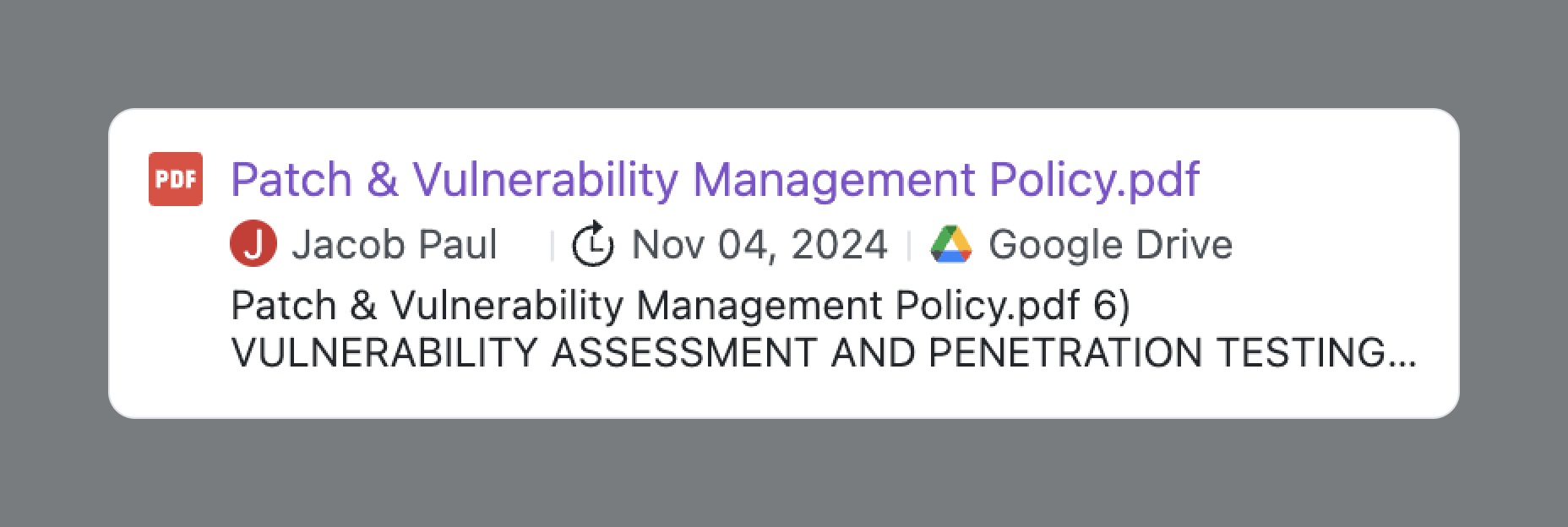
Each search result displays:
- Title of the document or content
- Text snippet showing where your search terms appear
- Source information (Documents, Q&A Repository, or connected platform)
- Last modified date
- Content owner
Important Note: You will only see search results for items you have access to in the native Connector. SiftHub respects the permissions of the Connector and will only display content you're authorized to view.
Previewing Search Results
When you click on a search result, the content opens based on its type:
- Connector results: Opens the source page, channel, or file in the native Connector
- Created Q&As: Opens the Q&A directly within SiftHub Browser Extension for preview
-
Uploaded Documents in SiftHub:
- Word or PDF files: Opens in a new tab for preview
- Excel, TXT, or PowerPoint files: Downloads automatically
AI-Generated Answers
When SiftHub detects that your search query is a question, it provides an AI-generated answer at the top of your search results. For example, when you ask "What is our refund policy?" or "How do we handle customer escalations?", you'll see:
- An AI-generated answer synthesized from your knowledge sources
- Source documents used to generate the answer, including:
- Last modified date
- Added by information
- Direct links to the source verify information
- Option to copy the answer with one click
Filtering Search Results by Source
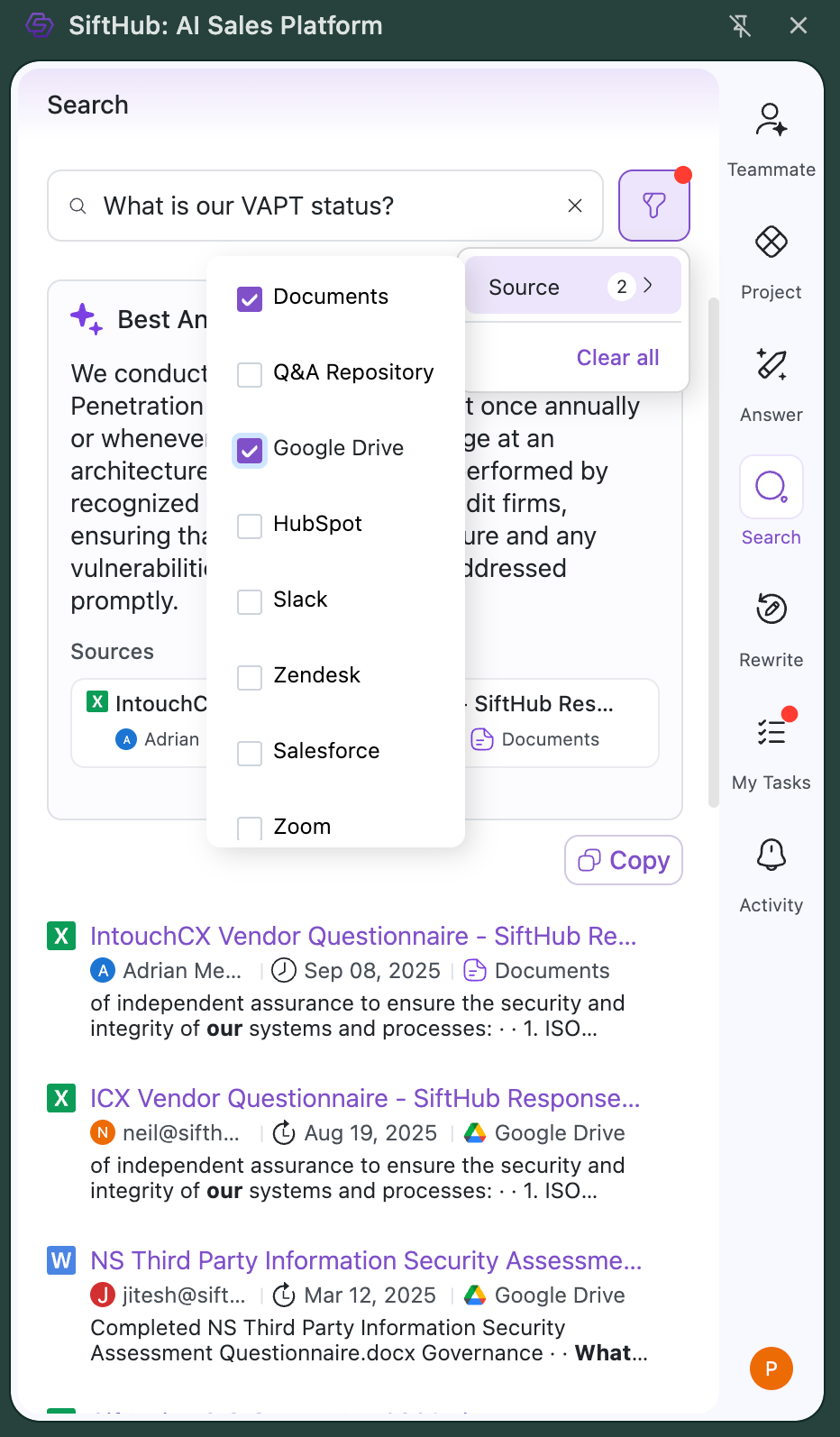
Users will be able to narrow down your search results by Source, using the Source filter:
- Click on the Source dropdown in the filter panel
-
Select one or multiple sources to filter by:
- Documents
- Q&A Repository
- Connected platforms (Google Drive, Slack, etc.)
- Clear filters to see all results again
Note: Only active connectors in your account will appear as filter options.
Troubleshooting
Common issues and solutions:
No Search Results
- Check if you have access to the sources you're searching
- Clear any applied filters
- Try different search terms or phrases
Results Not Loading
- Ensure you're connected to the internet
- Open and close the Browser Extension
- Re-login to the Extension
Can't Find Recent Content
- New content may take up to 30 minutes to appear in search results
- Verify the content is in a connected source
- Check your access permissions for that content
If you continue experiencing issues, please contact your SiftHub Customer Success Manager or reach out to support@sifthub.io.