SiftHub's Document360 Connector seamlessly integrates your knowledge base content into the SiftHub platform, allowing you to search and get AI-generated answers from your documentation directly through the SiftHub Browser Extension. Transform your Document360 knowledge articles into intelligent resources that power contextual answers and insights without leaving your workflow.
What Gets Connected
SiftHub ensures you maintain complete control over what content gets indexed from your Document360 knowledge base.
You can:
- Connect specific Document360 projects
This way, SiftHub only reads and indexes the content you explicitly allow it to access.
Supported Content
SiftHub indexes the following content from Document360:
- Articles
- Categories
Note:
- Only articles and categories in "Published" status within your connected project(s) are indexed
- All HTML elements, tables, and text formatting are preserved during indexing
How It Works
Once connected, SiftHub:
- Indexes the content of your selected Document360 projects
- Updates content every 30 minutes to capture any changes
- Makes the content searchable and available for AI-generated answers
- Preserves the hierarchical structure of your knowledge base
Access Control
SiftHub provides open access to your Document360 content:
- All SiftHub users in your organization can access content from connected Document360 projects
- This enables seamless knowledge sharing across your team without additional permission configuration
Using Document360 Content in SiftHub
Your connected Document360 content appears in:
- Search results with relevant snippets and metadata
- AI-generated Answers and document Autofill as verified sources
- Conversations and narratives created with AI Teammate
Note: Clicking any result opens the original article in Document360.
Content Updates
New or modified content appears in SiftHub within 30 minutes
Updates include:
- Newly published articles
- Content changes to existing articles
- Status changes (draft to published)
- Deleted or unpublished articles (automatically removed from SiftHub results)
Document360 Connector Setup
To enable this Connector, you need to obtain an API token from Document360 and provide workspace details for the projects you wish to connect.
Time to complete: Approximately 10 minutes
Setup Requirements:
Ensure you have the following access and permissions before you begin the setup, or contact the respective administrator for the same.
- Document360 Admin access: To generate the API token
- SiftHub Admin or Account Owner role: To activate the Connector from the SiftHub Web App > Connectors > Apps page
The process for setting up the Document360 connector includes the following main steps:
- Generate a Document360 API token
- Identify projects and workspaces to connect
- Activate Document360 Connector in SiftHub
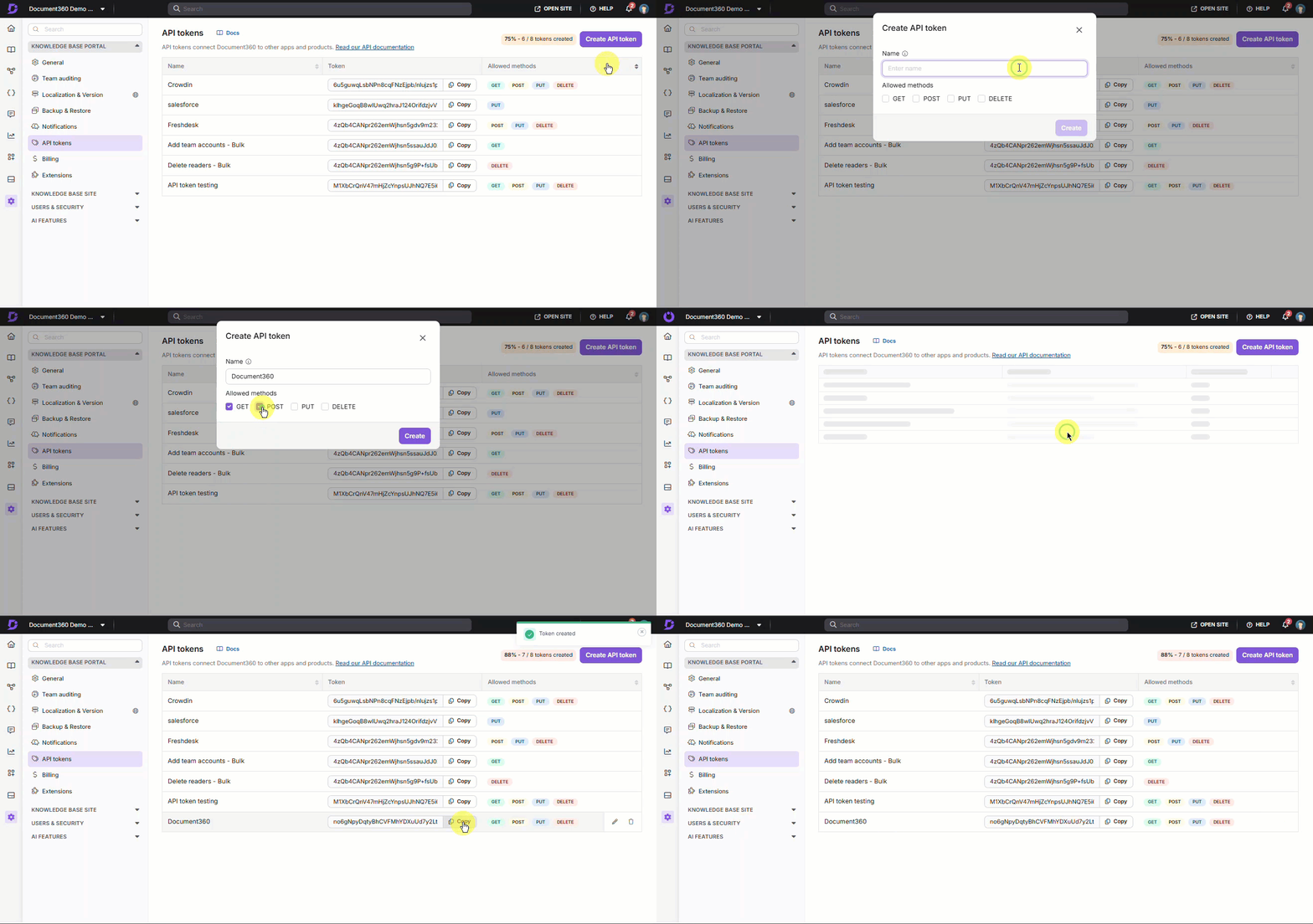
Step 1: Generate a Document360 API token
- Log in to your Document360 account as an Administrator
- Navigate to Settings > API Tokens
- Click on "Create API Token"
- Copy the generated API token and store it securely
- Note: If you already have an API token, you can use the existing one
Step 2: Identify Projects to Connect
- In Document360, navigate to the Projects page
- Note the names of the specific projects you want to connect to SiftHub
- Make a list of project names for reference during activation
Step 3: Activate Document360 Connector in SiftHub
- Share the following information with your SiftHub Customer Success Manager to enable the connection:
- Document360 API token (generated in Step 1)
- Selected projects to connect (from Step 2)
SiftHub team will complete the connection setup within 24 hours of receiving your API token and workspace details.
Once activated, SiftHub will begin indexing your Document360 content. The initial indexing process may take some time depending on the volume of content. After the initial indexing is complete, your Document360 content will be available for search and AI-generated answers in SiftHub.
To modify your connection later, simply work with your Customer Success Manager update your workspace selections as needed.
If you are experiencing issues with the connector or its setup, contact your SiftHub Customer Success Manager or reach out to support@sifthub.io.